Room 118
Capacity 16 + Instructor
The Tenkiller Lab is set up with 1 presenter screen along with 16 computer workstations and 1 instructor workstation. The desktops in all labs are set up to log in to the DHS network using DHS credentials.
This room also comes equipped with an air purifier that can be turned on during your event if desired.

How do I…
Options for Presenting:
- Bring your own laptop and cast it to the presenter screens using the Click-Share button.
– Training Coordinators recommend: using the laptop provided in the room rather than your own, as this tends to circumvent more technical issues such as difficulties stemming from differences between Mac and PC. - Sign in to the Microsoft 365 or other account where your presentation is stored and download it to the room’s primary laptop.
– Training Coordinators recommend: downloading your presentation onto the computer from OneDrive or wherever your presentation is stored, rather than trying to run your presentation out of the cloud. This tends to yield better results with fewer connection issues or other loading problems. - Bring a USB drive with your presentation materials and plug it into the room laptop.
- Send your presentation materials to the Training Coordinator associated with your event and they will load it onto the desktop for easy access when you arrive at the Training Center.
***If your presentation is not appearing on the screen, try the Input button on the remote. Sharing from a laptop is set to appear on the HDMI-1 input in this room.
For more information about and tips for presenting on the screens, see the Presentation Screens page.
The sound bar provides all sound for the room; it is set up to play sound from whatever computer is connected to the screen – usually the instructor desktop. Volume should be controlled on the computer first, and then with the included remote if needed.
To adjust the volume in the room, start by adjusting the volume on the computer first. If this is insufficient, the sound bar volume can be further adjusted using the remote on the AV cart.
To schedule and run a hybrid meeting, follow the typical procedures for online meetings:
- Open Microsoft Teams or Zoom: Launch the app on your computer or use the web version and log into your account.
- Schedule a Meeting:
a) Teams:
i) Click on the Calendar icon on the left side of Teams, or the “Schedule” icon from the Zoom home screen.
ii) Select “New Meeting” to schedule a future meeting or choose “Meet Now” for an immediate session.
b) Zoom:
i) From the “Home” tab, select “New meeting” to start an immediate session, or “Schedule” to create a future meeting. - Add Meeting Details: Enter a meeting title, date, time, and invite participants.
- Share the Meeting Link: Once the meeting is created, share the link with participants via email or a chat app.
- Start the Meeting: At the scheduled time, join your meeting from the Teams or Zoom app or calendar notification.
- Manage Participants: You can mute/unmute participants, turn on video, and share your screen as needed.
To share the meeting to the presenter screens, choose an option and follow the appropriate instructions from the How Do I Share my Presentation to the Screen? FAQ above. This room does not have a webcam and that any hybrid meetings run in this room will need to utilize the laptop camera if necessary.
For more specific guidance on scheduling, participating, and presenting in a hybrid meeting, please check the official Microsoft Teams or Zoom documentation.
There are several wi-fi networks that are available at the Training Center. Guest is the preferred network for all devices not owned by TCIT, including phones. It can be used by anyone at the TC and does not require a password. TC-Devices is for TCIT controlled and supported computers and requires a password. For additional information and a full list of available networks, please see the Wi-Fi networks at CPM worksites page.
Equipment
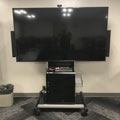
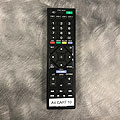
This room is equipped with one wall-mounted Presenter Screen that connects to the All-In-One instructor desktop via HDMI. ClickShare is not available in this room, but there is a docking station that can be connected if a presenter wishes to bring their own laptop. The screen is controlled by remotes that are kept at the instructor workstation.
The sound bar is controlled by remote and should not need to be adjusted beyond volume; all sound for the room comes through the sound bar.
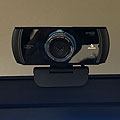
The room has 16 computer workstations, and 1 instructor workstation, each with two monitors. Each workstation has its own webcam built into the All-In-One computer for online or hybrid meetings. The computers are connected to the DHS network and can be logged into using DHS credentials. If OU groups or employees need to use these computers, reach out to TC Support ahead of your event and they will be able to set the computers up for OU Login ahead of time.
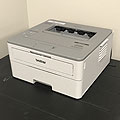
There is a Brother printer in the room that is connected to the Instructor’s computer. This printer is set as the default for that computer so all print jobs should go there with no issues or adjustments. Please ask for help if the printer is out of paper.
TC Support (tcsupport@ou.edu) is available to help with any issues that may arise with the room technology.
Please click the items below for details on how to use them:
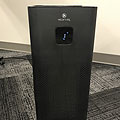
Air Purifier
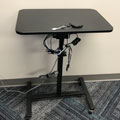
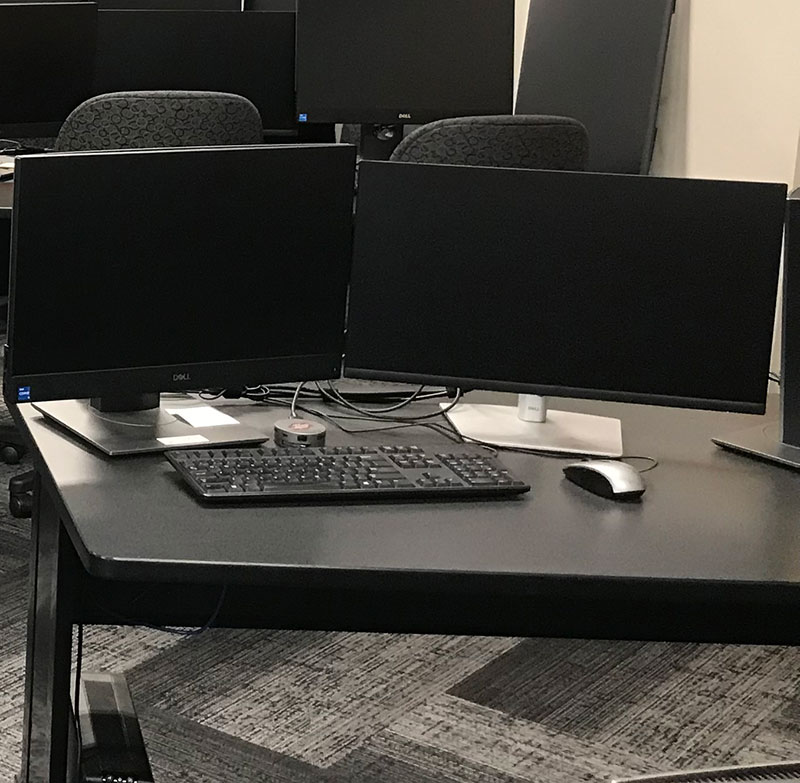
Computer Workstations

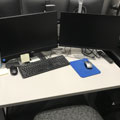
Instructor Workstation
Remotes
Soundbar
Front Desk
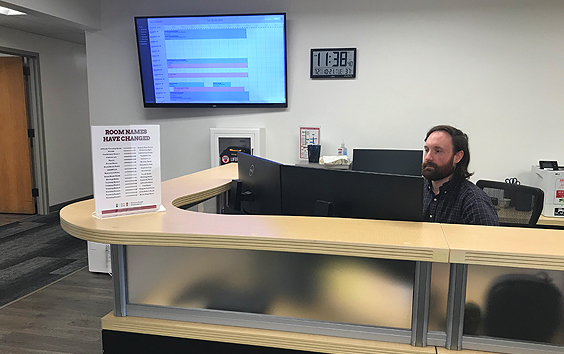
TCIT will typically check in before each event in order to make sure everything is set up correctly and ready for the day. Attendants at the Front Desk can answer any questions and check out anyadditional materials presenters or Training Coordinators may need from there.
For help, please contact:
Front Desk Phone: 405-325-9658
TC Support Email: tcsupport@ou.edu
If the front desk attendants are not present, please check for a sign with phone numbers listed for on-call personnel.