
Two rooms in the Training Center are equipped with large, presenter touch screens:
Boardroom
Strategy Room
The Roman Nose Room has a Smart Board, with touch-screen and pen writing capabilities.

How it works
Touch screens have both a remote control and a set of buttons at the bottom of the screen to control the screen’s power, input, settings, and volume.
In order to utilize the touch screen function, the controlling laptop requires two connections: an audio/visual connection (such as HDMI or VGA) and a USB connection that will enable the touch screen abilities. The cords needed for this are not readily available in the room, but TCIT can help by providing the necessary cables and setup if you wish to use these features. Please alert them ahead of time if you want this setup to be available for your session.

First:
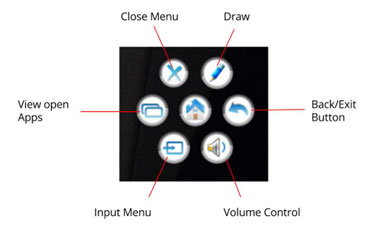
Once a computer is connected properly to utilize the touch screen, the presenter can activate interactive annotation features by using two fingers to swipe up from the bottom of the screen. You will hear a chime, and a round, blue and green icon will appear on the right side of the screen.
Second:
Pressing that icon will allow you to select from various options.
For more instructions on using the touch screen functions, see the Recordex Simplicty Touch Owner’s Manual.