
There are laptops available in every conference room at the Training Center
You may also use your own laptop if desired.

How it works
Using the room Laptop
The presenter screens are set up to mirror the content of the desktop monitor in the front left corner of the room. When using a laptop that is plugged into the docking station, the laptop screen will function as the primary screen and the monitor and presenter screens will act as the second screen. This means that when you’re ready to present, you can use the mouse or keyboard to drag your presentation or other materials off the laptop screen to the left in order to display them on the monitor and presenter screens.
Drag and drop involves clicking and holding the title bar of the window and dragging it to the desired monitor. Keyboard shortcuts involve using the Windows key + Shift + Left/Right arrow keys to move the window to the adjacent monitor.
Your audience will only be able to see what is on the large presenter screens, and you can keep whatever notes or other materials you need on the laptop screen for your use.
Using an outside laptop
If using an outside laptop instead of the one from the room, you may need to configure your display settings to reflect a second display. To emulate the setup of the room laptop, this would have your laptop on the right, and the extra monitor on the left, although you can position the second screen anywhere you wish it to be.
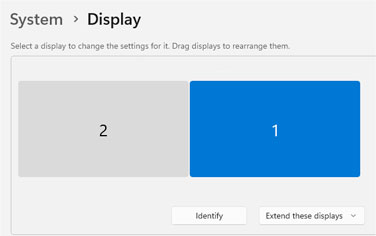
Windows machines:
To adjust these settings in Windows, open Settings and click on Display.
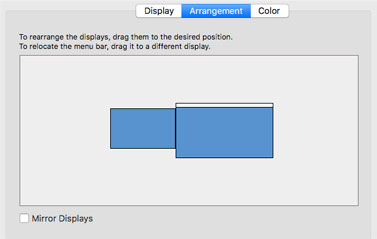
Mac machines:
To adjust these settings on a Mac, open System Settings › Displays > Arrangement.
***Note***
The above setup only works when connected to the docking station; using ClickShare will directly cast whatever is on your laptop screen and does not allow for the second-screen