
Click-Share is a wireless service which allows the computer display to be viewed on an external monitor.

How it works

First:
Initially, when the monitor is powered on ensure it is set to HDMI 1. It should eventually attempt to communicate with the click-share system and you may see the BARCO image appear.


Second:
Once the system is detected a screen should appear with the following desk-top background before initializing the Click-share dongle on the computer.
Third:
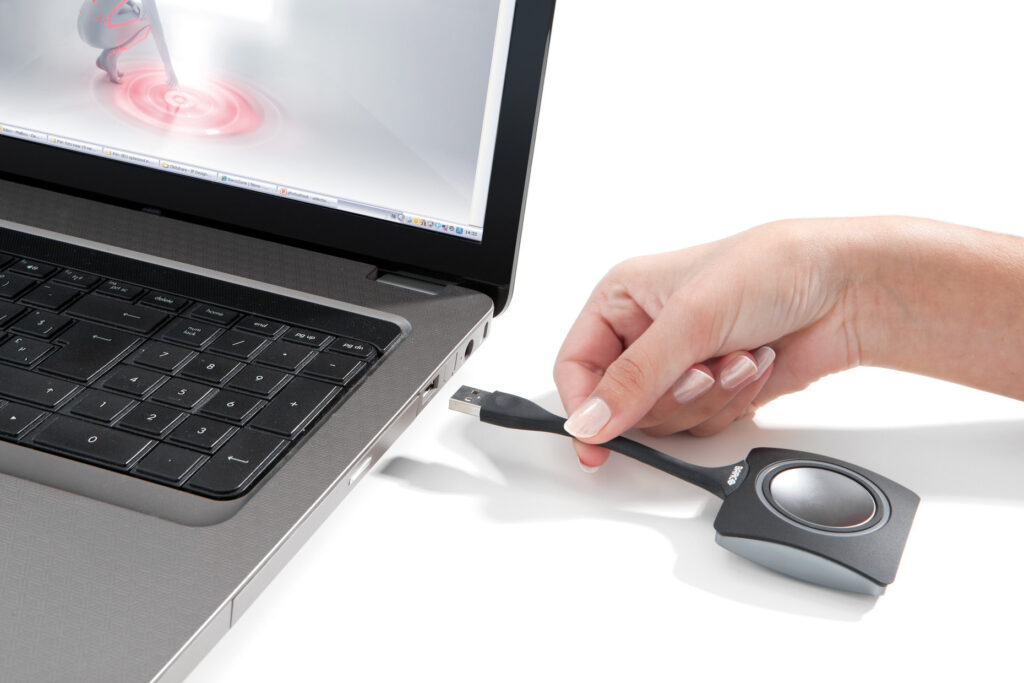
Plug the Click-Share connector into the USB-port of your PC/MAC.Wait 30 seconds for the computer to detect the dongle. The button will flash white.

Fourth:
Go to the file explorer on PC or desktop on Mac. Double-click the Click share file to run the temporary app on your computer.
Note:
If you are using your own computer you will likely need to install Click-share Software to use it.
See using your own computer below.(Hyperlink to bottom)
Depress Button
Fifth:
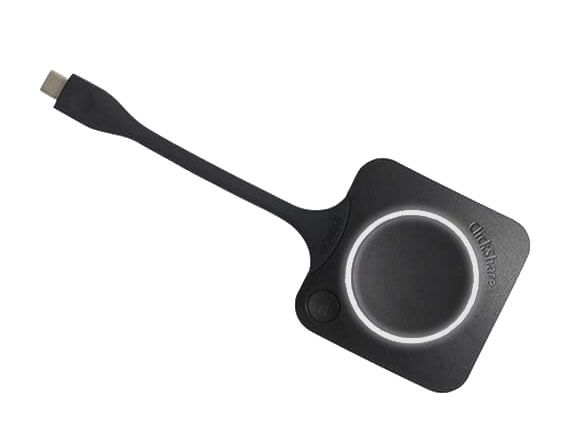
When the button changes to static white it is ready to depress for sharing content.
If the LED indicator continues flashing white:
This indicates the button ids failing to start the Click-share app
See troubleshooting tips below. (hyperlink to bottom)
If the LED indicator keeps spinning in a white circle:
This indicates button cannot connect to the paired base unit
See troubleshooting tips below. (hyperlink to bottom)
Sharing Screen

Sixth:
When the button changes to a static red, your screen is shared.
Troubleshooting:
If the LED indicator on the button is flashing white:
This indicates that the Button is failing to start the ClickShare App. There are several possibilities for why this is happening, but start by making sure the ClickShare software is running on the computer. Steps to do this are below.
If the LED indicator keeps spinning in a white circle:
This indicates the button cannot connect to the paired Base Unit. This typically indicates to a network connectivity issue, so you may need to check with TC Support for on-site help. For more information from ClickShare, see KB 5431.
Using your own computer:
If you are using your own computer you will likely need to install Click-share Software to use it. Below are the steps to install the software for Mac and PC Computers
If you are using a Mac:

First:
When you plugged the button into your computer, a ClickShare icon may have popped up on your desktop.
Double-click on this icon to open click-share window

Second:
Double-clicking the center logo will install the ClickShare app on your computer.
Note: The first time you plug ClickShare into your own Mac, it will need permission to record and share your screen. See next step for directions

Third:
Grant permissions to ClickShare by removing the Clickshare button from your computer, closing out of the Clickshare app, and going to Settings → Privacy → Screen and System Audio Recording and toggling the slider next to “clickshare.
Note: This can only be done if Clickshare is not actively running on your computer, so make sure to close out of the program before adjusting this setting.

Fourth:
Once this setting has been changed, you can plug the Clickshare button back into your computer and go through the steps:
1.Double-click the ClickShare logo on the desktop.
2.Double-click the center logo on the ClickShare window that appears.

Fifth:
When ClickShare is running you should see a white circle in your taskbar and a small-box at bottom-right of your screen that says
“Ready to share to _ _ _ _”
As long as the button remains a solid white, without flashing or going around in circles, it is ready to be cast to the monitor. When you’re finished, close out of ClickShare by right-clicking on the taskbar logo and selecting “Exit.” Then remove the button from your computer and return it to where you got it.
If you are using a PC:
First:
Once you insert the ClickShare button into the USB-C drive on your computer, the ClickShare app should automatically appear in the bottom-right corner of the screen.

Second:
If it doesn’t come up automatically, you can open your File Explorer, then choose This PC on the left hand menu. From This PC, you should be able to double-click on the ClickShare drive to open it.
When you’re finished sharing, press the ClickShare button to stop sharing and remove it from the computer.
Note: Some PC users have reported problems with using certain features on their laptops after disconnecting from ClickShare. In this case, restarting the computer should resolve any issues.
If you continue to have problems, check with Grant at the front desk, or TC Support at the north end of the Training Center. To open a TC Support ticket, use the tabs below to fill out the appropriate form.