Each room in the Training Center has at least one large screen that can be used for presentations, hybrid meetings, etc.
Screens can be connected to via a number of different options, depending on the room. Most rooms have an HDMI cord that can be connected either to the laptop that is assigned to the room, or to a presenter’s laptop. The screens in most rooms should be set to project from the laptop to the HDMI-1 input, aside from the Board Room, which is set to HDMI-2. If the computer is connected but not showing up on the screen, try using the remote to set the input to HDMI-1 (or HDMI-2, for the Board Room).
When using the room laptop connected via HDMI, the laptop screen will function as the primary screen and the presenter screens will act as the second screen. This means that when you’re ready to present, you can use the mouse or keyboard to drag your presentation or other materials off the laptop screen to the left in order to display them on the monitor and presenter screens.
- Drag and drop involves clicking and holding the title bar of the window and dragging it to the desired monitor. Keyboard shortcuts involve using the Windows key + Shift + Left/Right arrow keys to move the window to the adjacent monitor.
Your audience will only be able to see what is on the large presenter screens, and you can keep whatever notes or other materials you need on the laptop screen for your use.
*This can also be done with a presenter’s laptop, but it may involve extra setup. For instructions on configuring a presenter laptop to reflect the second display setup of the room laptops, see the Using an outside laptop section below.
**This second-screen function is only available when connected via HDMI (or, in some rooms, via the docking station). Using the ClickShare USB-C dongle to connect will directly cast whatever is on your laptop screen and does not allow for the second-screen functionality.
Select a room from the menu for instructions specific to the screens in that room.
In rooms with two screens on AV Carts:
In the Arbuckle, Black Mesa, Foss, Little Sahara, Thunderbird, and Wichita rooms, the two screens are typically set up to mirror one another with the content of the laptop plugged into the HDMI cable on the desk at the front of the room. If you would like them to run independently to display separate content, please ask TC Support for help with this setup.
Some best practices for presenting:
- Have any outside video links, such as YouTube videos, pulled up in a separate browser tab, even if they are embedded into your slides. This will serve as a backup in case the video has any trouble loading from within your presentation.
- Arrive early to test out your videos on the presenter screens and make sure they load properly and that the sound works and is set up in the way that you want it to be.
- Volume should be adjusted on the computer first, but audio settings for the Grand Room can be changed from the AV Console behind the podium using the Audio tab.
- Some people prefer to use “Presenter Mode” in PowerPoint; this allows you to see your notes, a presentation timer, and other helpful features while your slides are displayed full-screen onto the large presenter screens.
Using an outside laptop
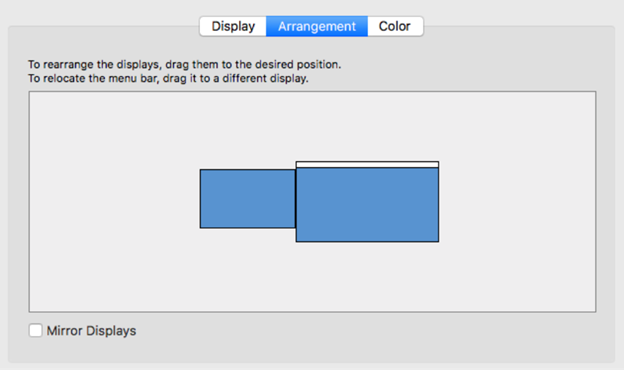
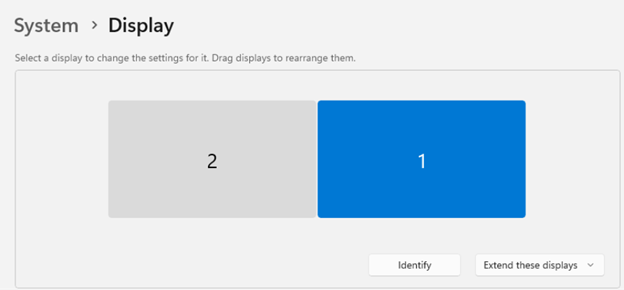
If using an outside laptop instead of the one from the room, you may need to configure your display settings to reflect a second display when connected to HDMI. To emulate the setup of the room laptop, this would have your laptop on the right, and the extra monitor on the left, although you can position the second screen anywhere you wish it to be.
To adjust these settings in Windows, open Settings and click on Display.
To adjust these settings on a Mac, open System Settings > Displays > Arrangement.