There are two speakerphones available in the Strategy Room that can be connected to and utilized in multiple ways.
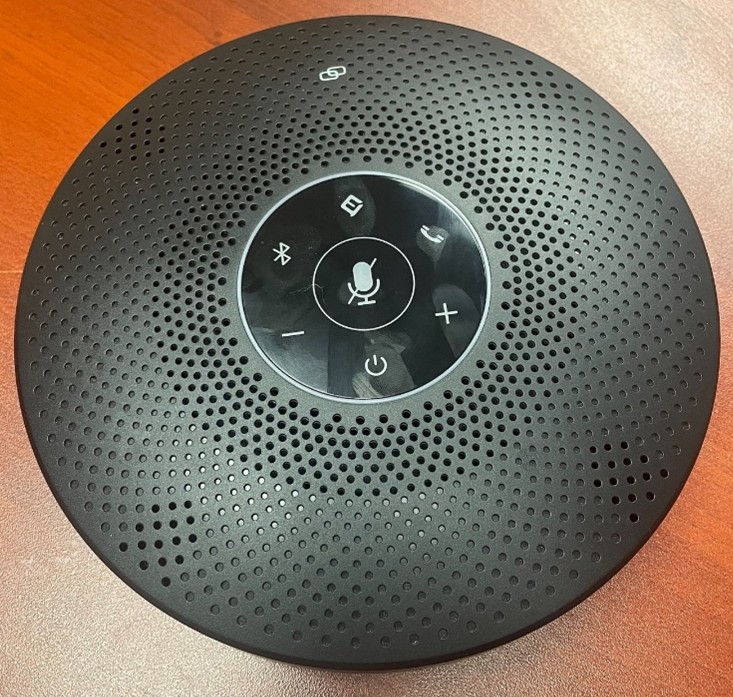
Users can connect to the phones via Bluetooth, USB-C, the USB Dongle stored in the bottom of the unit, or headphone jack. The icons on top of the unit can be pressed and will light up when active.
Press and hold the power button to turn the device on. To connect via Bluetooth, press and hold Bluetooth icon until the blue LED turns on. If the Bluetooth is not paired, the light will flash blue. Once it has paired with a device, the blue light will remain steady.
The microphone icon in the center can be pressed to mute or unmute those in the room, while the plus and minus buttons can be used to control the volume.
The Phone icon on the right can be pressed to answer or end a call; if a call is incoming, press and hold the button to reject it. The VoiceIA button at the top of the circle will enable noise reduction in the room via AI; it can filter out noises like keyboard tapping, air conditioning noise, and other unwanted background noise.
These speakerphones can also be daisy-chained together by connecting the Link ports using an eMeet cable. That cable has red connectors on each end and should stay plugged in to one of the units at all times.
The full user manual for this equipment can be found here: eMeet M2-Max User Manual.